1.4 Total Parcel Each Courier
Figure 1.4.0 below they way to Total Parcel Each Courier :

Figure 1.4.0Figure 1.4.1 shows the main page of Total Parcel Each Courier :

Figure 1.4.1A chart of Monthly Parcel for each Courier Based on Collection Date will be created
For example in Figure 1.4.2, admin want to create a Bar graph, they just need to click on Bar button for Chart Type :

Figure 1.4.2Next, choose date range for Collection Date, e.g in Figure 1.4.3 From (2017-06-02) and To (2017-08-01) :

Figure 1.4.3Click Search button, a bar graph will be prompted as shown in Figure 1.4.4 :

Figure 1.4.4Based on Figure 1.4.5, admin can hover over each bar to see details such as Courier Name and its total parcel sent, e.g admin hover over Poslaju National Courier :

Figure 1.4.5Admin can also click on each bar that represent different courier to create more detailed bar graph :
For example in Figure 1.4.6, admin click on Poslaju National Courier (light blue bar), a graph of courier Poslaju and its Total Parcel based on its shipment status is displayed :

Figure 1.4.6if admin click on Back to Total Parcel, they will be redirect to the previous graph.
For generated charts, admin are able to download or print them using the menu positioned on top right of the box.
For example in Figure 1.4.7, admin click on Download PNG Image option form the menu :

Figure 1.4.7Figure 1.4.8 is an example of downloaded image :
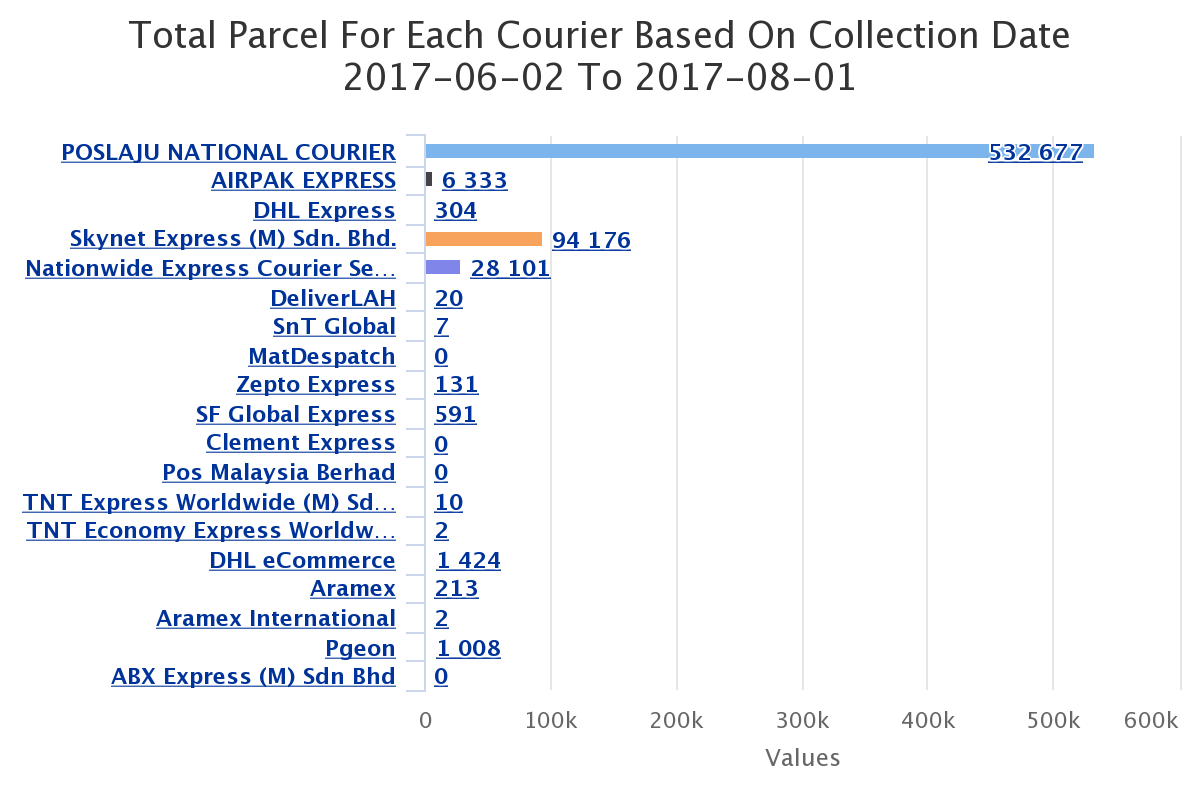
Figure 1.4.8