5.0 Manage Flyer
Figure 5.0 shows the way to manage flyer page :

Figure 5.0Figure 5.1 shows manage flyer main page :

Figure 5.1Based on Figure 5.2, there are 4 tabs included in Flyer Manager :

Figure 5.2
i. Claimable
- A record of flyers that can be claimed by topup customer.
Figure 5.3 shows Claimable list :

Figure 5.3Admin can search record by entering name, email, topup date, topup amount, or total entitled flyer in search bar. Figure 5.4 shows an example when admin search by customer's name:

Figure 5.4
ii. Request
- A record of flyers requested by customer.
Figure 5.5 shows Request List :
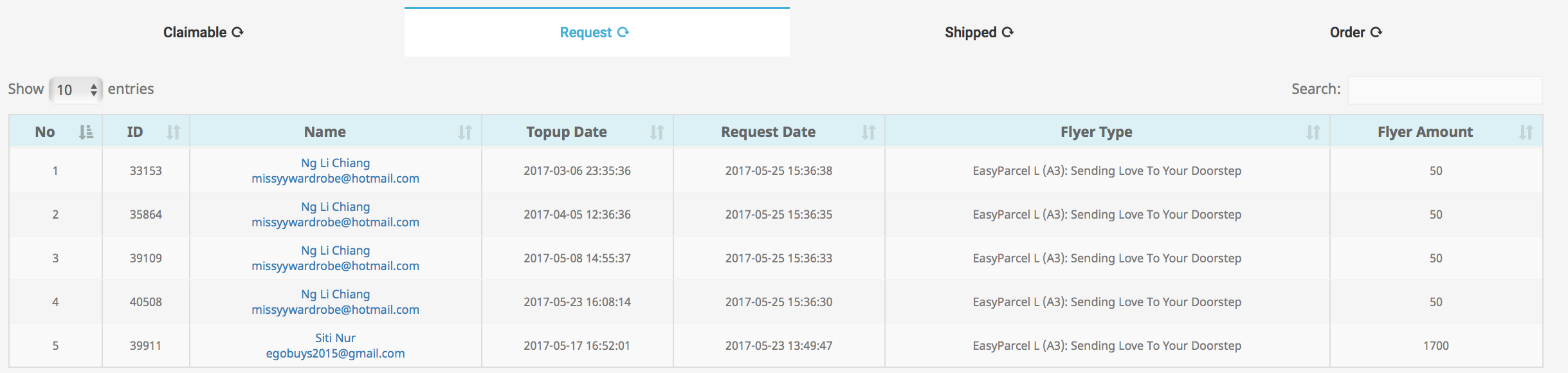
Figure 5.5Admin can search record by entering name, email, topup date, flyer type, or flyer amount in search bar. Figure 5.6 shows an example :

Figure 5.6
iii. Shipped
- A record of flyers that have been shipped to customer.
Figure 5.7 shows Shipped list :

Figure 5.7Admin can search record by entering email, date, flyer detail, processed date or order no in search bar as shown in Figure 5.8 :

Figure 5.8
iv. Order
- A record of flyers ordered by customer.
Figure 5.9 shows Order list :
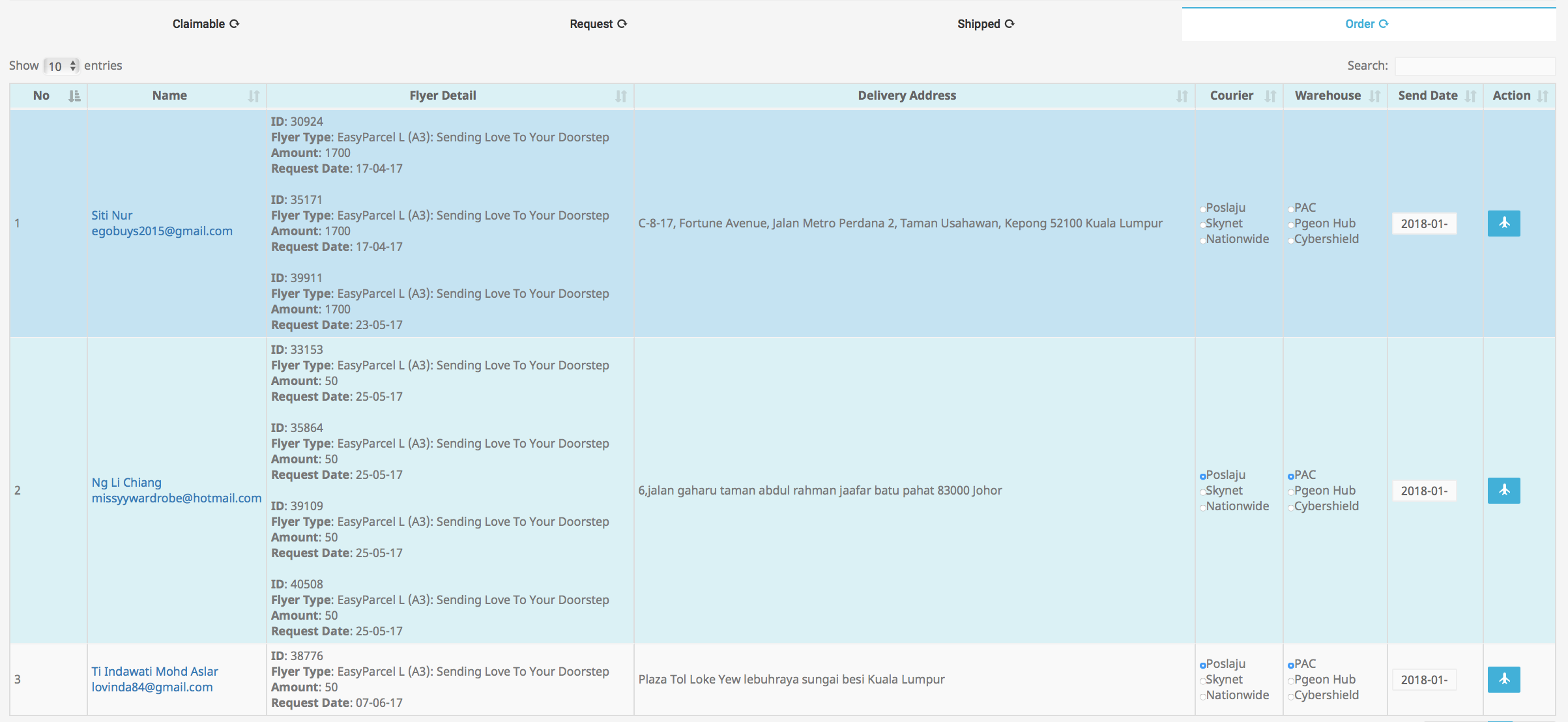
Figure 5.9The blue row indicates that the customer has made multiple flyer requests.
Admin can search record by entering name, flyer detail or delivery address in search bar. Figure 5.10 is an example :

Figure 5.10Based on Figure 5.11, if admin wants to send flyer to requested customer they just need to click on the highlighted icon :

Figure 5.11After clicking on the icon highlighted in Figure 5.11, the record will be removed from Order list.
Toggle Function
The toggle function is on every tab of Manage Flyer page as shown in Figure 5.12 :

Figure 5.12It is used to search customers record from each respective tab such as claimable, request, shipped and order.
Based on Figure 5.12, admin can toggle By Date or By Email.
i. By Date

Figure 5.13
Figure 5.13 is an example, the steps to search record by using the toggle by Date is as follow :
- toggle by Date
- click on the search bar, a calendar will be prompt
- select date range (choose option given or select custom date range)
click submit button

Figure 5.14click on Claimable tab as shown in Figure 5.14 to refresh the list for claimable.
ii. By Email

Figure 5.15
Figure 5.15 is an example, the steps to search record by Email is as follows :
- toggle to By Email
enter user email that wants to be searched

Figure 5.16click claimable tab as shown in Figure 5.16 to refresh the list
Flyer List
Figure 5.17 shows Flyer List button :

Figure 5.17Admin are able to update flyer status and quantity using Flyer List.
When admin clicks on the button a flyer list will be displayed as shown in Figure 5.18:

Figure 5.18Based on Figure 5.19 shows that the flyer's current status is Active, admin are able to deactivate the flyer by clicking on the highlighted icon :

Figure 5.19The step to deactivate is also the same as deactivating the flyer.
Admin can directly enter the balance amount of flyer in the column(highlighted in black) or they can change the amount by clicking the (+) and (-) icons(highlighted in red) shown in Figure 5.20 :

Figure 5.20
Manual Order
Figure 5.21 shows manual order button :

Figure 5.21When admin clicks on the button a window will be prompt as shown in Figure 5.22 :

Figure 5.22Based on Figure 5.22 the steps to order flyer manually is as follow :
- enter Request Id
- enter Requested Email
- choose Flyer Type
- enter total amount of flyer requested
- enter the Order Id
- click Submit button
Figure 5.23 is an example of manual order form filled :

Figure 5.23After submitting the form, confirmation pop message will appear as shown in Figure 5.24 :

Figure 5.24