2.4 Manage Report Issue
- Figure 2.4.0 shows the main page of manage report issue :

Figure 2.4.0
A. Issue List

Figure 2.4.1
- Based on Figure 2.4.1, the issue list are sorted in 6 categories.
i. Total
- Record where all the issues reported by customer such as parcel damage, parcel lost, late delivery and etc.
- Figure 2.4.2 shows the list of total issues when admin clicks on Total Issue :

Figure 2.4.2 - Admin can view more information regarding the issue reported by customer by clicking on View Issue Detail button.
- Figure 2.4.3 shows parcel issue reporting detail from total issue which displays issue overview :

Figure 2.4.3 - Reporting Issue contains Issue Overview, Issue's Question and Responses, and Issue's Chat History.
- Figure 2.4.4 shows Issue's Question and Responses tab :

Figure 2.4.4 - Figure 2.4.5 shows Issue's Chat History :

Figure 2.4.5 - Based on Figure 2.4.5, admin can add new remarks to the issue by :
- type remark in Enter New Remark column
- click Enter Remark button to save
ii. Unresolved
- Record where the issues reported from customer will directly be displayed.
- Figure 2.4.6 shows a list of Unresolved Issues :

Figure 2.4.6 - Based on Figure 2.4.6, admin can view unresolved issues details by clicking View Issue Details button.
- The steps to adding new remark is the same as in Total Issue.
iii. Opened
- Record where the issue reported by customer is in progress of waiting courier site to assign an agent to help customer check and resolve the issue.
- Figure 2.4.7 shows a list of Opened Issues :

Figure 2.4.7 - Based on Figure 2.4.7, admin can view opened issues detail by clicking View Issue Details button.
- The steps to adding new remark is the same as in Total Issue.
iv. Unassigned
- Issues that hasn't been assigned to any agent to be solved .
- Figure 2.4.8 shows a list of Unassigned Issues :

Figure 2.4.8 - Based on Figure 2.4.8, admin can view unassigned issues by clicking on View Issue Details button.
- The steps to adding new remark is the same as in Total Issue.
v. Pending
- Issues reported by customer that are still pending for agent to solve it.
- Figure 2.4.9 shows a list of Pending Issues :

Figure 2.4.9 - Based on Figure 2.4.9, admin can view pending issues details by clicking View Issue Details button.
- The steps to adding new remark is the same as in Total Issue.
vi. Resolved
- Issues reported by customer is already solved by assigned agent.
- Figure 2.4.10 shows a list of Resolved Issues :

Figure 2.4.10 - Based on Figure 2.4.10, admin can view resolved issues detail by clicking View Issue Detail button.
- The steps to adding new remark is the same as in Total Issue.
B. Insurance50 Issue
- Insurance50 issue is a record of a third party insurance on each parcel and customer may claim the insurance if they have purchased an insurance for their parcel.
- If admin wish to view the insurance50 issue, they need to toggle to insurance50 issue as shown in Figure 2.4.11 :
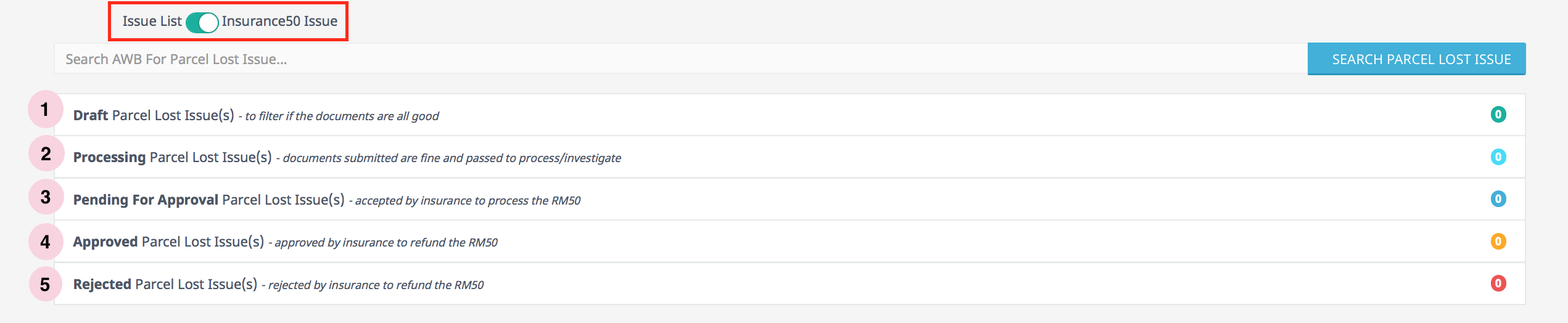
Figure 2.4.11 - Based on Figure 2.4.11, the insurance50 list are sorted in 5 categories :
i. Draft Parcel Lost
- First stage to claim insurance for draft parcel lost issue is to filter the document submitted by customer and make sure that it fulfils the requirement to claim the insurance.
- Figure 2.4.12 shows Draft Issues :

Figure 2.4.12 - Admin can check whether the document submitted by customer fulfils the requirement by clicking View Issue Detail button.
- Figure 2.4.13 shows the Draft Issue detail which is also Issue Overview :

Figure 2.4.13 - Based on Figure 2.4.13, Parcel Content and Good Value are editable.
Figure 2.4.14 is an example to edit Parcel Content, the steps to editing are as follow :

Figure 2.4.14- click on Parcel Content, and a column will appear for admin to enter new value
- click (√) icon to save changes or (x) icon to discard changes made.
Figure 2.4.15 shows Issue Questions and Responses tab in Draft Issue detail :

Figure 2.4.15Based on Figure 2.4.15, admin are able to edit the highlighted columns.
The steps to editing date item posted and item package explanation are the same editing goods value.
Based on Figure 2.4.16, admin can upload photo of parcel and invoice :

Figure 2.4.16To upload parcel photo or invoice in their respective column, admin need to click on (+) button, a window will pop up as shown in Figure 2.4.17 :

Figure 2.4.17Based on Figure 2.4.17, choose the parcel image then click on Choose button and the photo/invoice will uploaded.
Photo/invoice uploaded can be viewed by clicking on the magnifier icon. It can also deleted by clicking on (x) icon.
- After admin finish checking the document submitted by customer and if they don't find any error, they can proceed by moving the parcel to processing stage. This can be done by clicking on Processing button highlighted in Figure 2.4.18 :

Figure 2.4.18 - "This case status has been updated" status will be displayed under Action column.
- If admin does find error in the document submitted by customer, admin can request from the customer to resubmit the document by clicking on Request Resubmit button highlighted in Figure 2.4.19 :

Figure 2.4.19 - A column for reject reason will appear as in Figure 2.4.20 :

Figure 2.4.20
ii. Processing Parcel Lost Issue
- In order to get second stage, first stage need to be passed through.
Processing Parcel Lost Issue are documents that have the checking in Draft Parcel Lost Issue and are moved to process.

Figure 2.4.21Admin can check again the document by clicking on View Issue Detail button highlighted in Figure 2.4.21.
Parcel Issue Reporting Detail will be displayed as shown in Figure 2.4.22 :

Figure 2.4.22Based on Figure 2.4.22, Parcel Content and Goods Value are editable by admin.
The steps to edit them is the same as in Draft Parcel Lost Issue.
Figure 2.4.23 shows that admin are allowed to edit Processing Issue's Question and Responses :

Figure 2.4.23The steps to editing date item posted and item package explanation is the same as in Draft Parcel Lost Issue.
The steps to uploading parcel photo and invoice is also the same as in Draft Parcel Lost Issue.
To move issue from processing status to pending status, admin need to click on Pending button highlighted in Figure 2.4.24 :

Figure 2.4.24- If admin finds out there are errors on the document submitted, they can request from customer to resubmit their document clicking on Request Resubmit button highlighted in Figure 2.4.25 :

Figure 2.4.25 - Based on Figure 2.4.26, need to enter the reject reason in the column and then click Reject button to reject :

Figure 2.4.26
iii. Pending For Approach Parcel Lost Issue
- Final stage to claim insurance, admin approves the claim requested by customer.
- Customer requested is accepted by insurance and is approved RM50 as compensation.
- Figure 2.4.27 shows Pending for Approval Issue list :

Figure 2.4.27 - Admin can view pending for approval parcel lost issue details as shown in Figure 2.4.28 by clicking View Issue Details button.

Figure 2.4.28 - Based on Figure 2.4.28, Parcel Content and Goods Value are editable.
- The steps to edit them is the same as in Draft Parcel Lost Issue.
- Figure 2.4.29 shows Issue's Question and Responses for Pending for Approval Issue.

Figure 2.4.29 - Admin are not allowed to edit nor upload anything for this issue.
iv. Approved Parcel Lost Issue
- Claim request approved by admin will be shown here.
- Figure 2.4.30 shows Approved Parcel Lost Issue list :

Figure 2.4.30 - Figure 2.4.31 shows Approved Parcel Lost Issue details when admin click on View Issue Detail :

Figure 2.4.31 - Based on Figure 2.4.31, Parcel Content and Goods Value are editable.
- The steps to editing them is the same as in Draft Parcel Lost Issue.
- Based on Figure 2.4.32, for Approved Issue's Questions and Responses are not editable.

Figure 2.4.32 - Admin are not allowed to upload photo or invoice.
v. Rejected Parcel Lost Issue
- Claim request rejected by admin admin will be shown here.
- Figure 2.4.33 shows rejected parcel lost list :

Figure 2.4.33 Figure 2.4.34 shows Rejected Parcel Lost Issue details when admin clicks on View Issue Detail button :

Figure 2.4.34Based on Figure 2.4.34, Parcel Content and Goods Value are editable.
The steps to editing them is the same as in Draft Parcel Lost Issue.
Figure 2.4.35 shows Rejected Parcel Lost Issue Questions and Responses which is not allowed to be edit by admin. Admin is also not allowed to upload parcel photo or invoice :

Figure 2.4.35
Search Function
- The search function is for admin to search parcel lost by entering the awb.

Figure 2.4.36 - Based on Figure 2.4.36 the steps to search parcel lost is as follow :
- toggle between Issue Lost to Insurance50 Issue
- enter Airway Bill number
- click on Search Parcel Lost Issue button
- Figure 2.4.37 shows the search result :

Figure 2.4.37